Making better black and white photos from RAW
Pulling the color out of a photo takes one click. Making a black and white image that has depth and punch takes a few more decisions, and RAW gives you room to make them.
Black and white photography removes the most attention-grabbing part of an image, color, and leaves you with light, shape, texture and contrast. Done well, it can make an ordinary scene feel timeless. Done carelessly, it produces a flat gray picture that looks like a mistake. The difference is rarely the subject. It is almost always how the tones were handled during conversion.
Shooting RAW helps here. Because the RAW file keeps full color information, you can decide later how each color translates to gray, which is something a camera's built-in monochrome JPEG mode has already decided for you.
Why plain desaturation looks flat
The simplest conversion sets saturation to zero. Each pixel becomes a gray based on its brightness. The problem is that colors that look very different can have nearly identical brightness. A red flower and the green leaves around it might be obvious in color, but in gray they can merge into the same mid-tone mush.
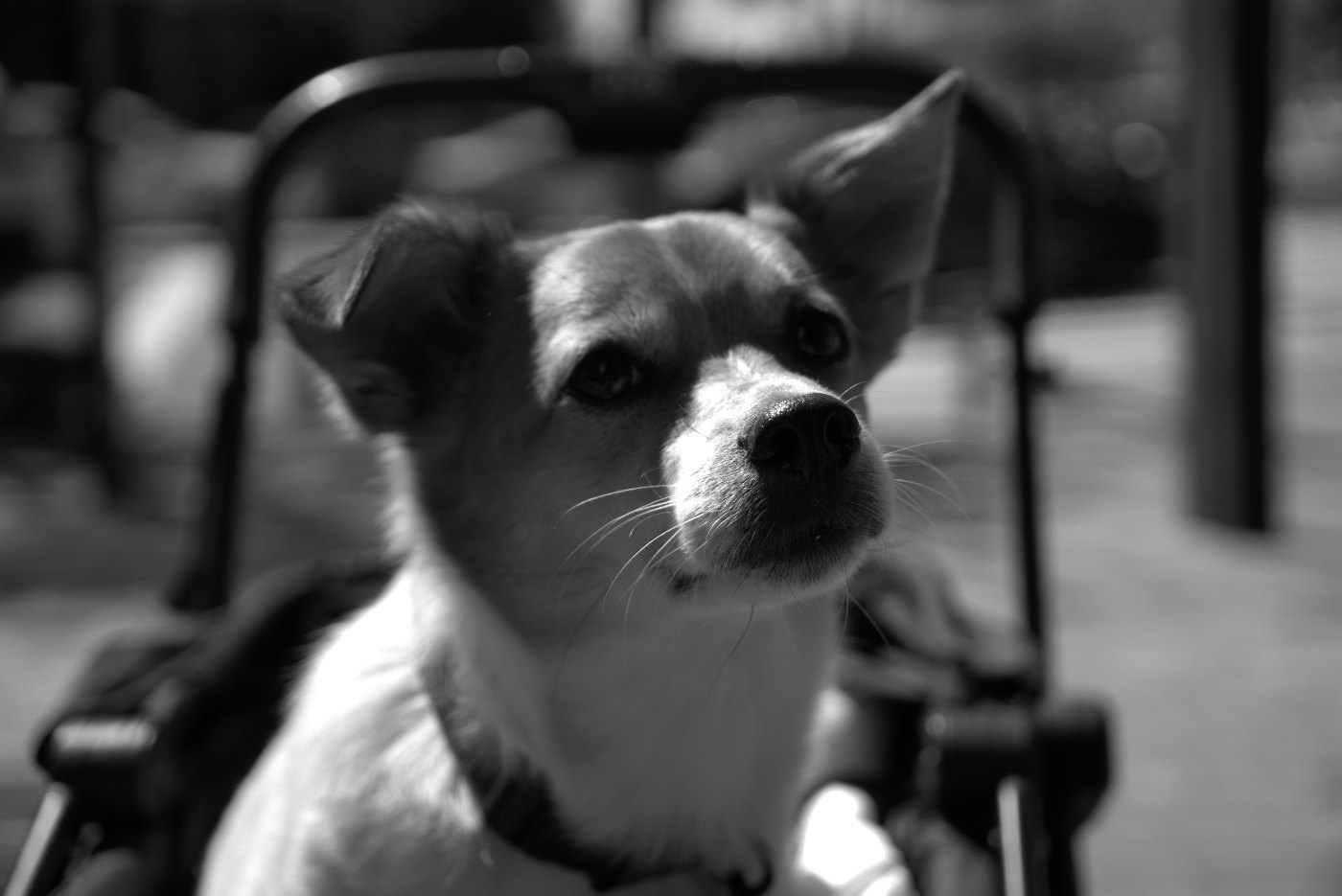
A good black and white conversion spreads tones out again: it gives the image clear darks, clear lights, and separation between subject and background.
Step 1: Look for tonal contrast, not color contrast
Some photos convert beautifully and some never will. Before converting, squint at the image or imagine it in gray. Good candidates usually have:
- Strong light and shadow, such as side light, window light or hard sun.
- Texture: weathered wood, fabric, fur, skin, stone, clouds.
- Clear shapes and lines: architecture, silhouettes, graphic street scenes.
- Distracting or ugly color: mixed lighting, color casts, or clashing clothes that pull attention away from the subject.
Photos whose main point is color, like autumn leaves, a sunset or a colorful market, usually lose more than they gain.
Step 2: Get exposure and highlights right first
Black and white is less forgiving of blown highlights than you might expect, because a clipped white area has no texture to hold the eye. Set your overall brightness with Exposure, then pull Highlights down if bright areas like skies or white clothing are losing detail. If the shadows are too heavy, lift them a little with Shadows. The highlights and shadows guide goes into the details.
Step 3: Use white balance as a color filter
Film photographers shooting black and white used colored glass filters to control tones. A yellow, orange or red filter darkens blue skies and makes clouds stand out; a green filter lightens foliage. You can get a similar effect from a RAW file by adjusting white balance before the color is removed.
In RAWSnap, white balance is applied to the image before saturation, so with Saturation at -100 the Temp and Tint sliders become tone controls:
| Slider move | Effect in black and white | Similar to |
|---|---|---|
| Temp to the right (warmer) | Reds, oranges, yellows and skin get lighter; blue skies and shadows get darker | Yellow to orange filter |
| Temp to the left (cooler) | Blues get lighter; skin and warm tones get darker | Blue filter |
| Tint to the left (greener) | Foliage and greens get lighter | Green filter |
| Tint to the right (more magenta) | Greens get darker | Red or magenta filter |
This is coarser than the separate color-channel mixer in a full editor, which lets you adjust reds, greens and blues independently, but it covers the most common needs. If you want fine control over individual colors in black and white, Lightroom, Capture One, darktable and RawTherapee all offer channel mixer or B&W mix tools.
Step 4: Build contrast
Most black and white images benefit from more contrast than their color versions. Without color to separate objects, tone has to do that job.
- Contrast spreads all tones away from the middle. Start around +15 to +35.
- Blacks anchor the image. A small negative value gives you a true black somewhere in the frame, which makes everything else look richer.
- Whites set the brightest tones. A small positive value adds sparkle, but watch for clipping.
- Clarity adds punch. In full editors it is a local-contrast tool that emphasizes texture; in RAWSnap it works more simply, as a bit of extra overall contrast. It suits architecture, street and character portraits; go easy on smooth skin and children.
Note that Vibrance does nothing once Saturation is at -100, since there is no color left to adjust.
The two built-in looks
RAWSnap includes two black and white presets that combine these steps.
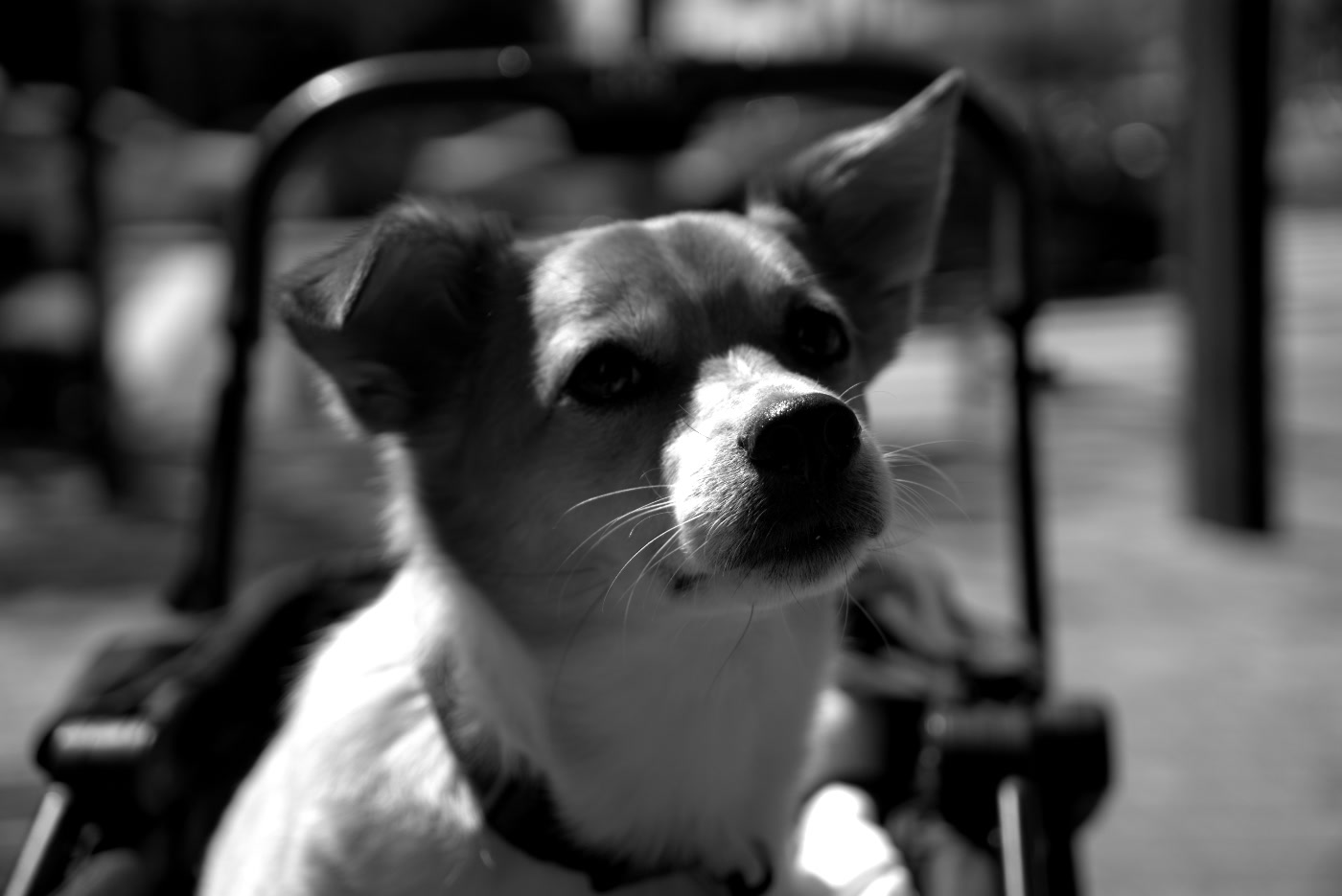
B&W is the gentle option: full desaturation, moderate contrast (+16) and a small lift in the shadows (+8). It suits portraits, pets and everyday scenes where you want a clean, natural monochrome.
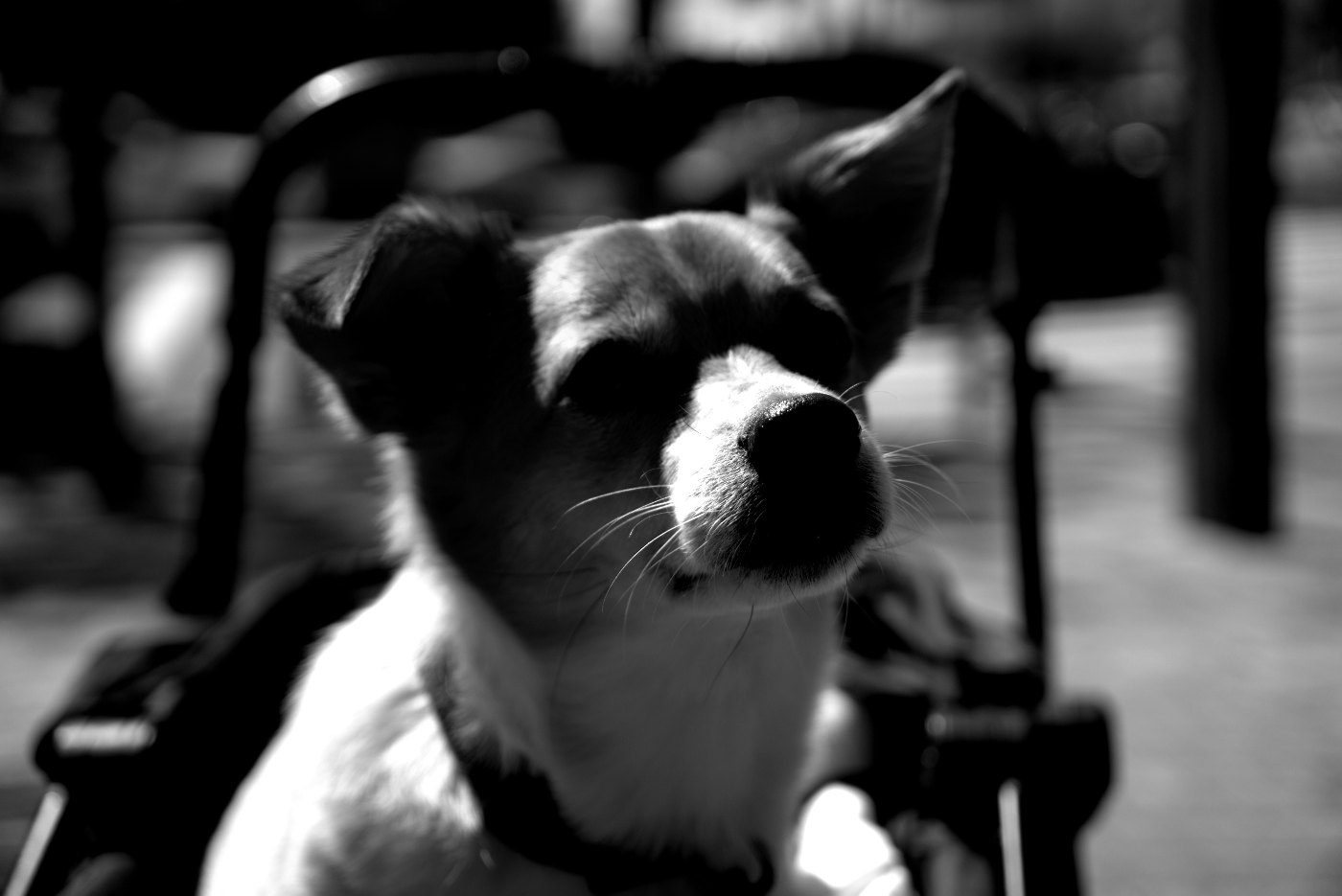
B&W Bold is the dramatic option: strong contrast (+34), deeper Blacks (-16), brighter Whites (+10) and added Clarity (+16). It works for street photography, architecture and moody scenes, and it hides noise well because the grain blends into the gritty look.
Both make good starting points. After choosing one, try moving Temp to see how the tones shift, then save the result as your own preset if you like it. The presets guide explains how.
A quick recipe for a strong conversion
- Correct exposure and recover highlights while the image is still in color.
- Apply B&W or B&W Bold.
- Move Temp left and right to find the most pleasing separation between subject and background.
- Adjust Contrast and Blacks until the image has a true black and clean highlights.
- Fine-tune Clarity for a little extra punch, then export.
Black and white and noise
Monochrome is a classic rescue for high-ISO photos. Removing color eliminates colored noise speckles, and the remaining luminance noise often resembles film grain. A concert or night street photo that looks messy in color can look intentional in black and white. The high ISO noise guide has more ways to deal with grain.
Checking your result
Black and white edits are easy to overdo because the eye adapts quickly to high contrast. Before exporting, run through a short checklist:
- Step away for a moment. Look at something else for ten seconds, then come back. Overly harsh contrast is much easier to spot with fresh eyes.
- Find the brightest and darkest areas. Is there texture in the brightest important area, such as a white shirt or a cloud? Is the darkest area intentional, or has something important disappeared into it?
- Check the subject's separation. Does the main subject stand out from the background in tone, or do they blend into the same gray? If they blend, try moving Temp or Tint again.
- View it small. Shrink the browser window or look at the preview on your phone. Strong black and white images still read clearly as a thumbnail.
Common mistakes
- Too much gray, not enough black or white. If nothing in the frame is close to black or white, the image will probably feel muddy.
- Crushed shadows. The opposite problem: pushing Blacks so far that large areas go solid black and lose all shape.
- Halos from heavy local contrast. In editors with local Clarity or texture tools, extreme values can create glowing edges around subjects against bright skies.
- Converting a photo that only works in color. If the color was the point, keep it.
- Shooting monochrome JPEG only. If you like the in-camera monochrome preview while shooting, set the camera to RAW plus monochrome picture style. You see black and white on the screen, but the RAW keeps the color data for later.
FAQ
Should I shoot in the camera's monochrome mode?
If you shoot RAW, the monochrome setting only affects the preview and in-camera JPEG. The RAW still contains full color, which lets you choose how colors become gray later. It is a handy way to visualize black and white while shooting.
Why does my black and white photo look flat?
Plain desaturation keeps the original brightness of each color, which often bunches tones in the middle. Add contrast, set a true black point, and use white balance to separate colors that turned into similar grays.
How do I make the sky darker in black and white?
Warm up the white balance before or while desaturating. In RAWSnap, moving Temp to the right with Saturation at -100 darkens blue skies, similar to an orange filter on film.
Which RAWSnap preset should I use for black and white?
Use B&W for a natural, balanced result and B&W Bold for a high-contrast, dramatic look. Either can be adjusted further and saved as your own preset.
Open the converter