Using presets on RAW photos, and building your own
A preset is just a saved set of slider values. Used well, it gives you a fast, consistent starting point. Used blindly, it makes every photo look the same in the wrong way.
Presets have a mixed reputation. Some photographers swear by them for speed and consistency; others see them as a shortcut that produces generic, over-processed images. Both views are partly right. A preset is a tool, and like any tool, the result depends on what you point it at and whether you adjust afterward.
This guide explains what a preset actually does, walks through each of the twelve looks built into RAWSnap with honest notes about where they shine and where they struggle, and shows how to save your own.
What a preset is, and is not
A preset is a stored combination of adjustment values: white balance, exposure, contrast, highlights, shadows, color and so on. Applying it simply moves those sliders to the saved positions. Nothing magical happens: you can see the slider values it set and change any of them. (A few of RAWSnap's built-in looks also add a subtle color grade that has no slider, described below.)
What a preset cannot do is know your photo. A preset made on a bright beach scene will behave very differently on a dim indoor portrait, because it applies the same relative changes to completely different starting material. That is why the best way to think of a preset is as a starting point, not a finished edit.
Get the basics right before choosing a look
A preset amplifies whatever is already there. If the photo is too dark, a moody preset makes it murky; if the white balance is off, a warm preset turns a slight orange cast into a strong one. A reliable order is:
- Check that the overall brightness is roughly right.
- Check that whites and skin look neutral, not tinted. See the white balance guide if not.
- Then try presets and pick the one that suits the mood.
- Finally, fine-tune the sliders the preset set.
In RAWSnap, choosing a preset replaces the current slider values with that preset's values. So if you have already adjusted things by hand, those manual changes are reset when you click a preset. Pick the look first and fine-tune afterward, or save your manual tweaks as a preset before experimenting.
A tour of the 12 built-in presets
Below is what each preset is designed to do, based on the adjustments it makes. Several of them also include a subtle color grade, a tint added separately to shadows, midtones and highlights, which is not available as a slider but is part of the preset's character.
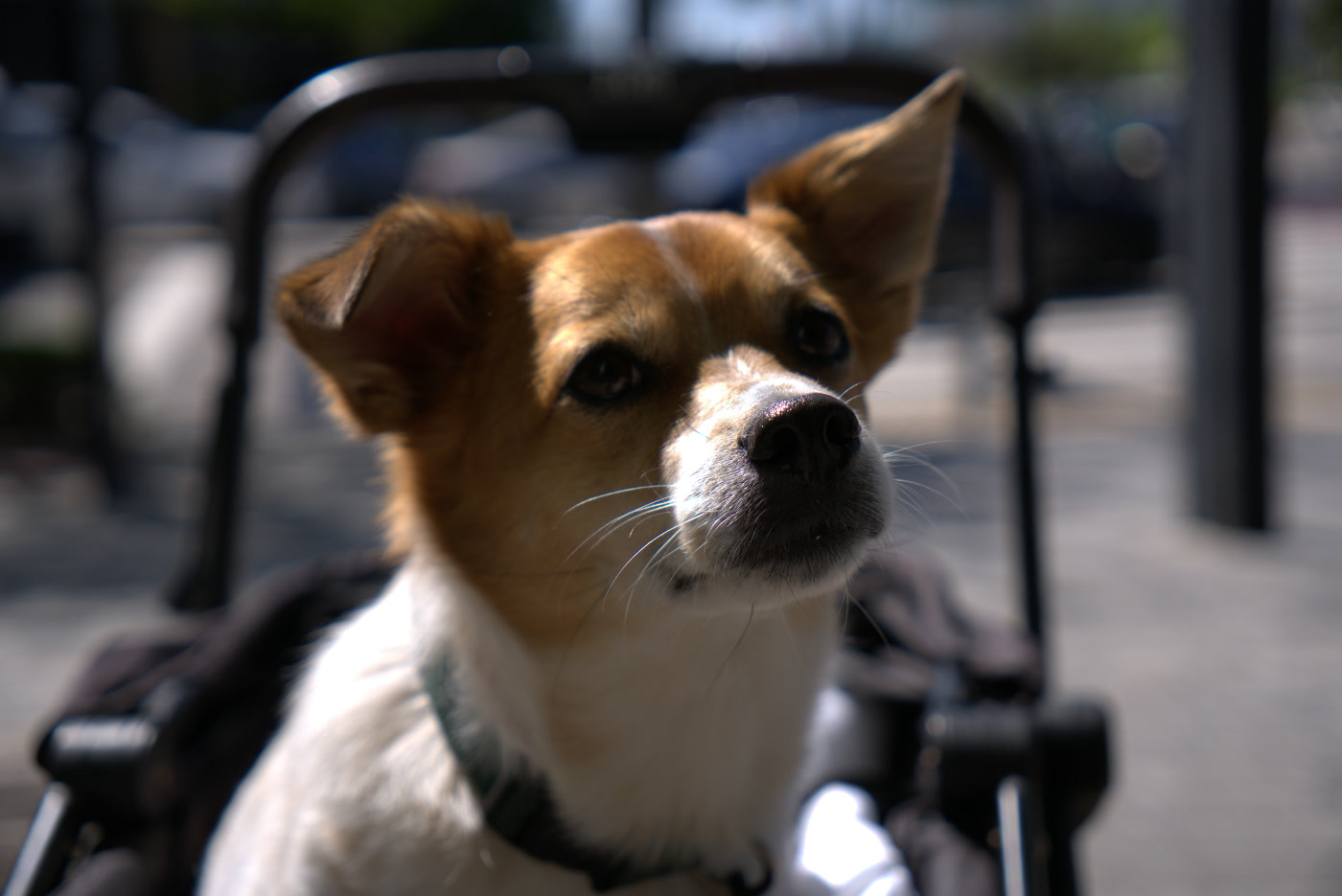
Natural
No adjustments at all, just a clean development of the RAW with the camera's white balance. It is also what the Reset button returns to. Use it when you want an honest, true-to-life result or a neutral base for your own edit.
Vivid
More contrast, a strong Vibrance boost, a little extra Saturation and Clarity, and slightly deeper blacks. It suits landscapes, travel, food and overcast days that need life. Watch skin tones, which can turn orange, and highly saturated objects, which can lose detail.
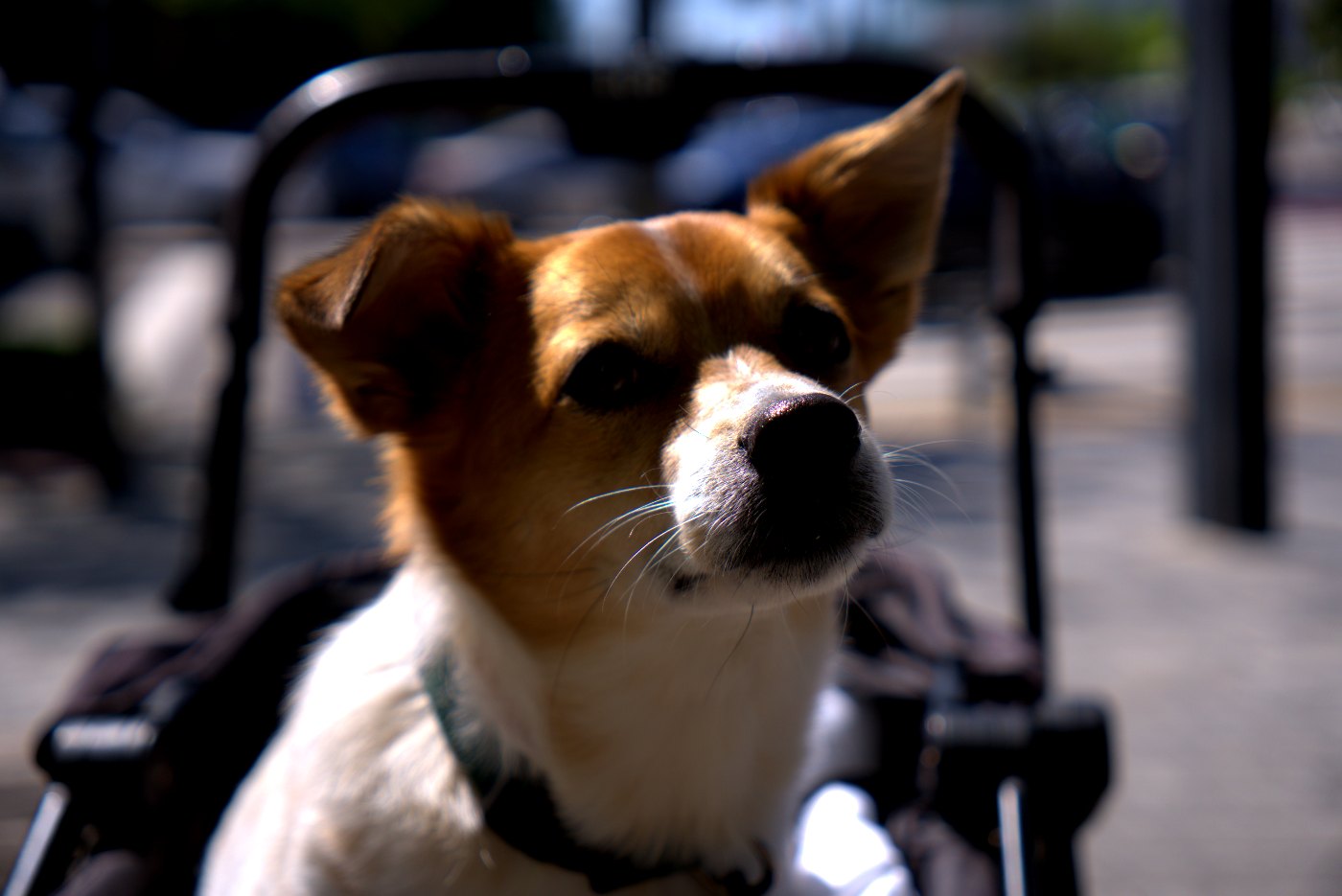
Portrait
Softer contrast, gently recovered highlights, lifted shadows, slightly negative Clarity to smooth texture, a modest Vibrance boost and a touch of warmth. It is designed to flatter people, keeping skin soft and faces bright. On landscapes it can look a little dull.
Cinematic
Stronger contrast with pulled-down highlights and lifted shadows, deeper blacks, slightly reduced saturation, and a color grade that pushes shadows cooler and highlights warmer. That warm/cool split is a familiar film-style look. It works well for city scenes, moody portraits and dusk. On already-blue scenes it can look heavy.
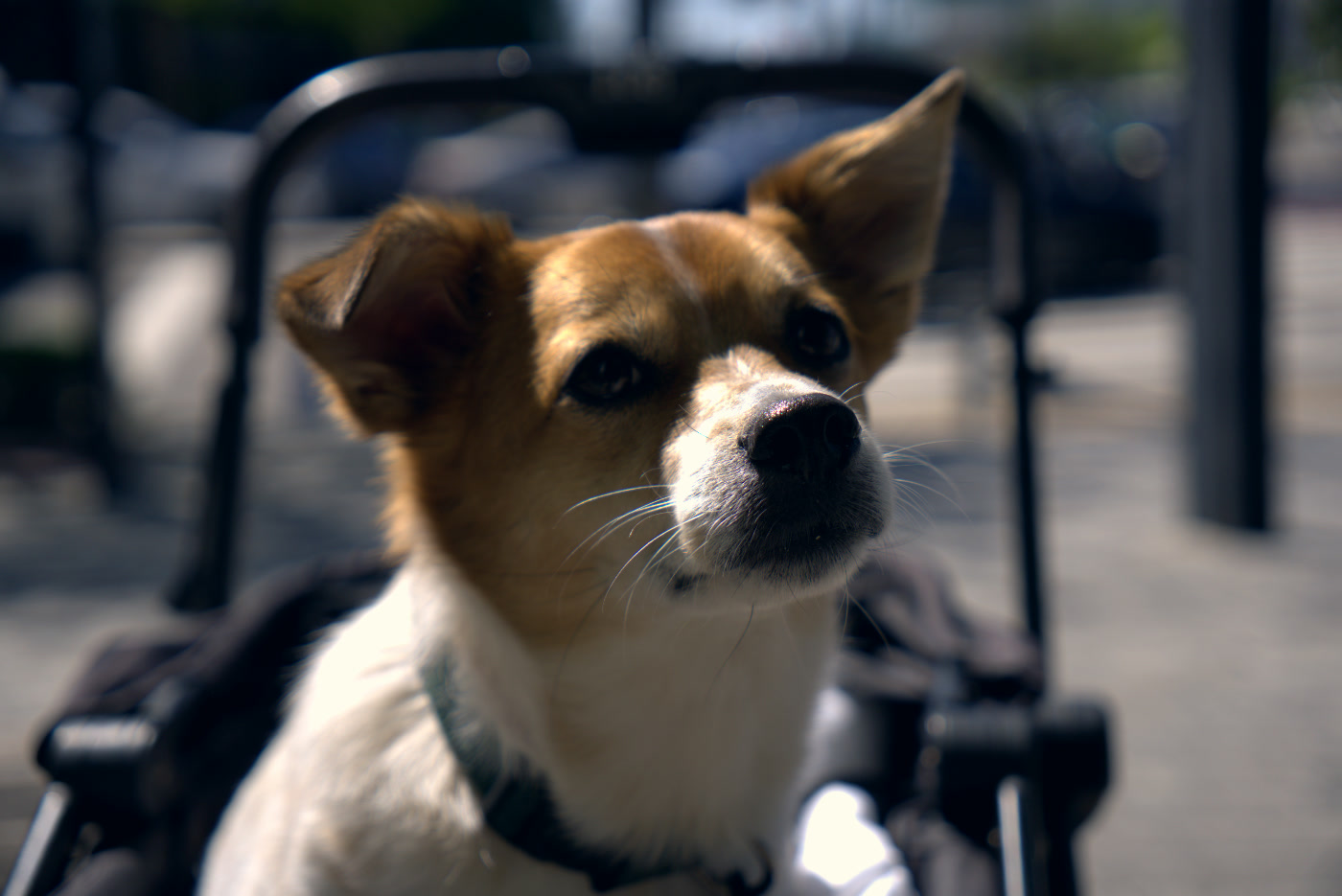
Warm Film
A clear warm shift in white balance, gentle contrast, softened highlights, lifted shadows, a Vibrance boost and a warm color grade. It evokes the feel of warm consumer film stock. Good for everyday life, family photos and autumn. Avoid it on photos that already have a warm indoor cast.
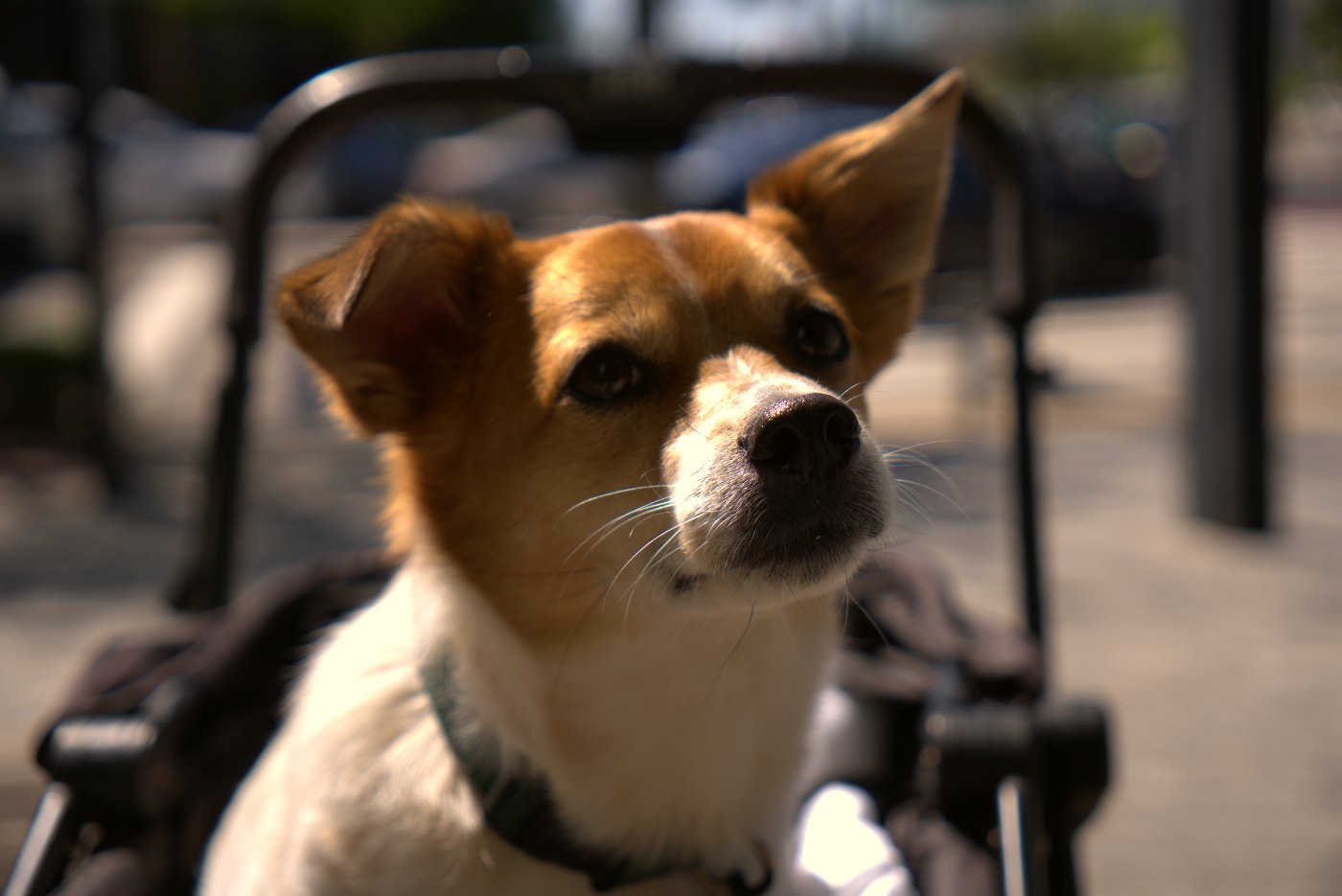
Cool Blue
A cooler white balance, more contrast and a blue-leaning grade. It fits snow, water, rainy streets, modern architecture and anything that should feel crisp or cold. Skin will look pale, so it is rarely a portrait choice.
Golden Hour
The warmest preset: a strong warm shift with a little magenta, recovered highlights, lifted shadows, plenty of Vibrance and a golden grade. It enhances photos taken in late-afternoon light or adds a sunset feel to neutral daylight shots. Applied to a midday scene, the effect can look obviously artificial, so consider reducing Temp after applying it.
Pastel
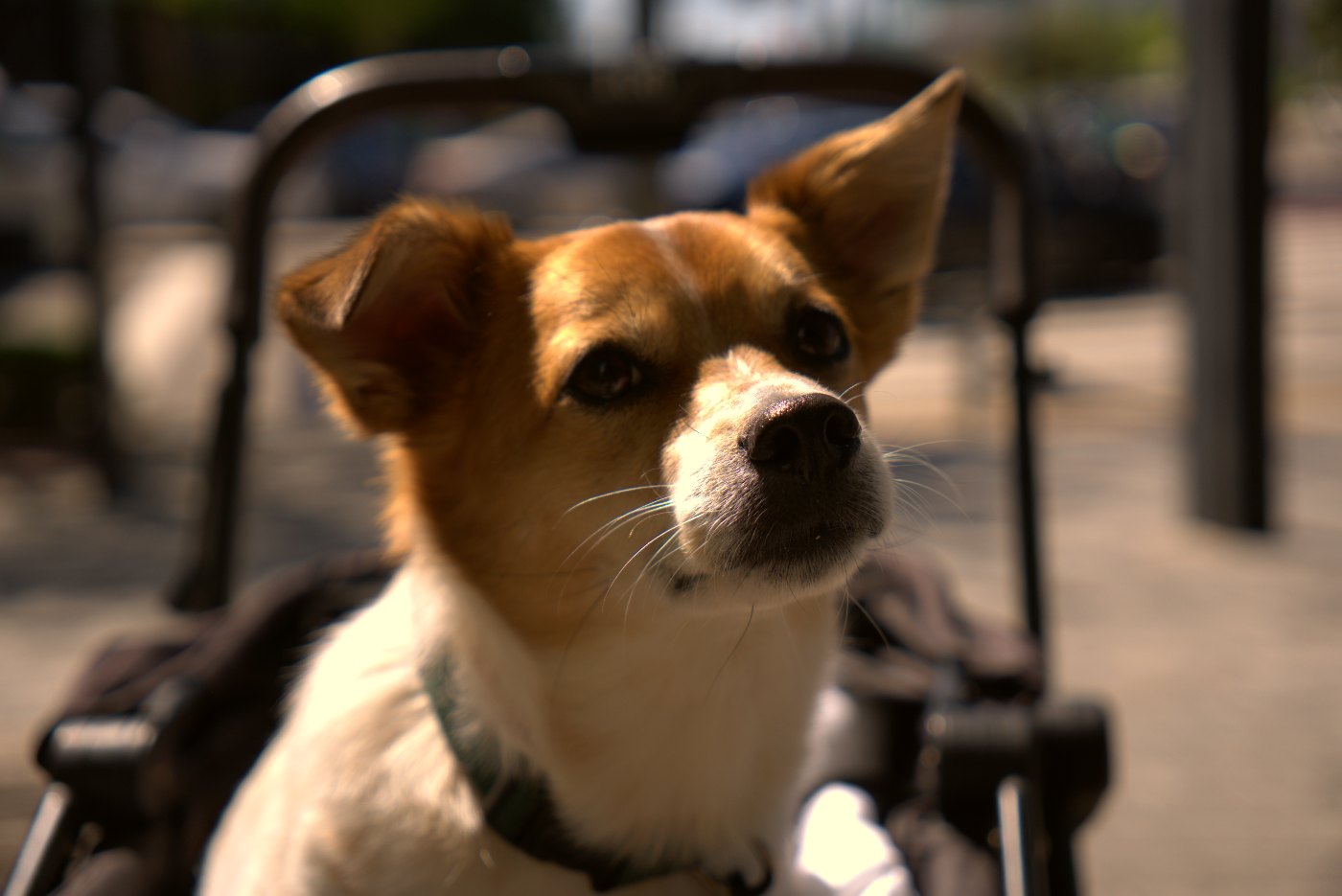
Lower contrast, lifted shadows and blacks, slightly reduced saturation and a hint of warmth. The result is airy and soft. It suits flowers, bright interiors, weddings and light-colored scenes. Dark, contrasty photos lose their depth with it.
Vintage
Warm white balance, reduced contrast and saturation, lifted blacks for faded shadows, and a warm grade. It imitates an older, faded print. Nice for nostalgic street scenes and travel; less suited to images that rely on crisp detail.
Matte
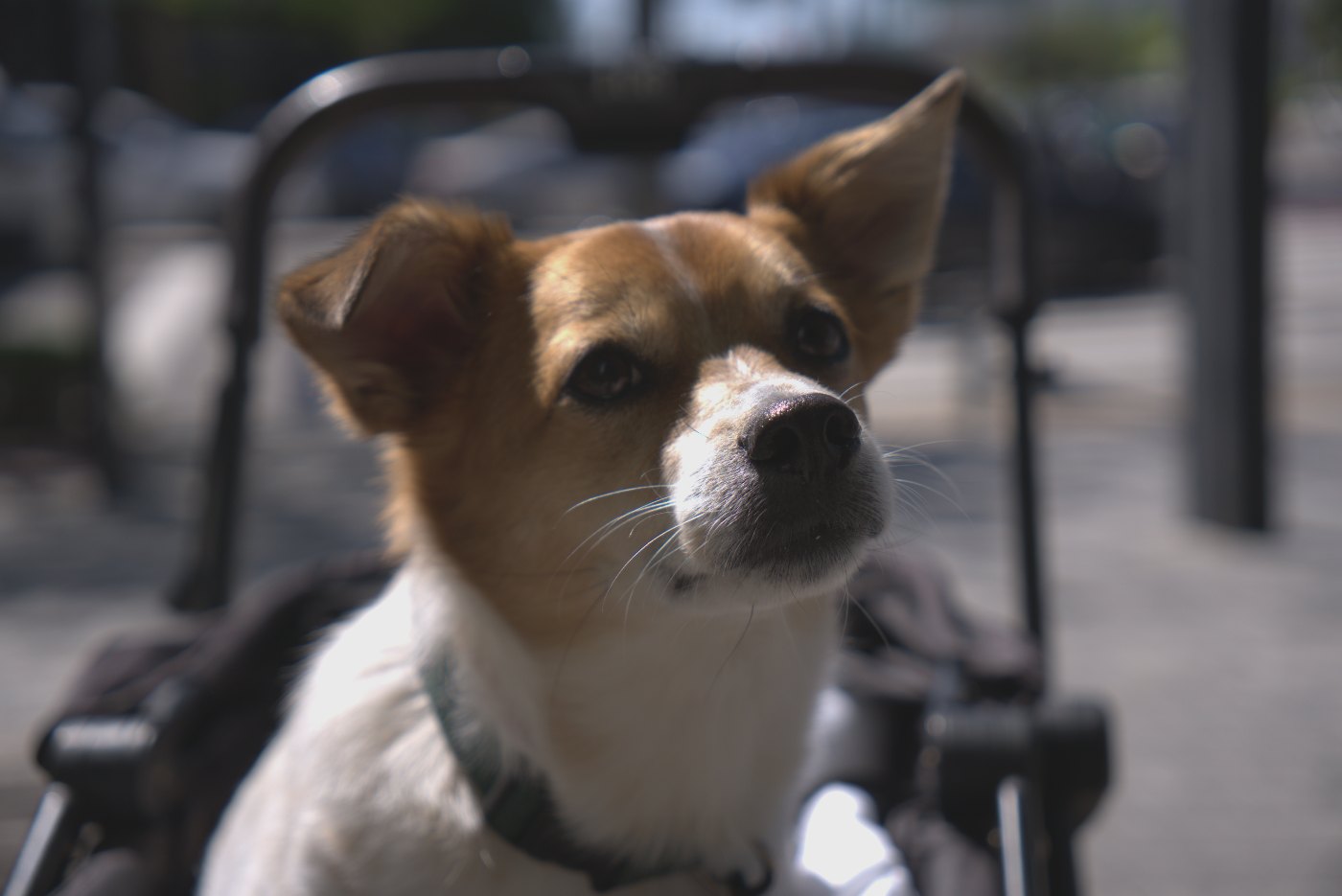
Reduced contrast, strongly lifted blacks, softened highlights and lower saturation and Clarity. The defining feature is that nothing is truly black, which gives a flat, editorial look popular on social media. It is subtle on bright photos and very noticeable on dark ones.
B&W and B&W Bold
The two monochrome options. B&W is balanced with moderate contrast; B&W Bold is high-contrast and gritty with added Clarity. The black and white guide covers both in detail, including how to use Temp as a color filter after applying them.
Fine-tuning after a preset
Almost every preset benefits from one or two adjustments. The most common:
- Too strong overall? There is no global intensity slider, so dial back the preset's biggest move, usually Temp, Vibrance or Contrast.
- Brightness changed? Presets that lift shadows or blacks can make a photo look brighter or washed out. Correct with Exposure or Blacks.
- Skin looks wrong? Reduce Vibrance and Saturation slightly or nudge Temp back toward neutral.
- Highlights clipping? Pull Highlights further down.
Saving your own preset
Once you have a look you like, saving it takes a few seconds:
- Adjust the sliders until the photo looks right.
- Click Save preset and give it a clear name, such as "Indoor warm portrait".
- Your preset appears in the preset row with a dashed outline. Click it on any future photo to apply it.
- To remove it, click the small × on its chip. Saving again with the same name replaces the old version.
A saved preset stores every current slider value, including Straighten. If you straightened a horizon before saving, that rotation is part of the preset, which is usually not what you want on other photos. Set Straighten back to 0 before saving.
Where custom presets live
Custom presets are stored in your browser's local storage on that device. They are not uploaded anywhere, which also means they do not sync between browsers or devices, and they disappear if you clear the site's data. If a preset is important, write down its slider values somewhere safe so you can recreate it.
Presets and consistency
The real power of presets shows up when you edit a set of photos. Applying the same look to a whole event or trip makes the images feel like they belong together, even when the individual edits differ slightly. A practical approach: perfect one representative photo, save it as a preset, then apply it to the rest and correct only exposure and white balance where needed. In RAWSnap, slider settings apply to all open files at once, so save any individually corrected photo on its own before moving on. The batch workflow guide covers this in more depth.
FAQ
Do presets change my original RAW file?
No. Presets only change the settings used to develop the image. The RAW file on your device is never modified; you export a new JPEG.
Why does the same preset look different on two photos?
A preset applies the same adjustments to different starting images. Lighting, exposure and colors in the original all change how the result looks, which is why small adjustments afterward are normal.
Can I use Lightroom presets in RAWSnap?
No. Lightroom presets use Adobe's own processing and settings, which do not map to RAWSnap's sliders. You can recreate a similar look by hand and save it as a RAWSnap preset.
Will my saved presets be there next time?
Yes, in the same browser on the same device, as long as you do not clear the site's stored data. They are not synced to other devices.
Which preset is best for portraits?
Portrait is designed for people, with soft contrast and smoother texture. Warm Film and B&W also tend to flatter faces. Avoid strong Vivid or Cool Blue on skin.
Open the converter