Exposing for RAW: histograms, ETTR and highlight warnings
RAW gives you room to fix exposure later, but not unlimited room. Exposing well at capture is still the biggest quality lever you have. This guide shows how to read the tools your camera already gives you.
A common misunderstanding is that RAW makes exposure unimportant: "I'll just fix it later." RAW certainly forgives a lot, but the amount of light you collect still determines how clean your shadows are, how much color detail survives in the highlights, and how far you can push the file. Good RAW exposure isn't about making the camera preview look perfect. It's about capturing the most useful data without losing the highlights that matter.
Why exposure still matters with RAW
Two physical facts drive everything in this guide:
- More light means less visible noise. Noise in a photo is largely the random variation in how many photons arrive. Collect more light and the signal grows faster than that randomness, so the image is cleaner. This is why lifting a dark exposure in software looks noisier than exposing brighter in the first place.
- Clipped highlights are gone for good. Once a photosite saturates, any extra light is simply not recorded. Shadows can be lifted at a cost; truly clipped highlights cannot be brought back. See recovering highlights and shadows for what's possible.
Put together, the ideal RAW exposure is the brightest one that does not clip the highlights you care about. That idea has a name: expose to the right.
Reading a histogram
A histogram is a bar chart of the tones in your image: dark tones on the left, bright tones on the right, and the height at each point showing how many pixels have that brightness. It doesn't judge whether an image is "good"; a night scene should be piled up on the left and a snow scene on the right.
What to look for:
- A spike against the right edge means some highlights are clipped. Whether that's a problem depends on what they are: a blown-out sun or a specular glint on chrome is fine; a bride's dress is not.
- A spike against the left edge means some shadows are pure black. Often acceptable, sometimes desirable.
- A gap at the right side means you left headroom unused. With RAW, you could likely have exposed brighter.
Use the RGB histogram if you can
Many cameras can show separate red, green and blue histograms. A single brightness (luminance) histogram can look safe while one color channel is already clipped, which is common with saturated red flowers, blue skies and colored stage lights. The RGB view reveals it.
Highlight warnings and zebras
Most cameras can flash clipped areas in playback, often called "blinkies". Many mirrorless cameras and video-capable bodies also offer zebras, a striped overlay on bright areas in the live view, with an adjustable threshold. These tools tell you where clipping happens, which a histogram can't. If the blinking area is a lamp or the sun, ignore it. If it's a face, a white shirt or cloud detail, reduce exposure.
Your camera's histogram is a JPEG histogram
This is the most important nuance for RAW shooters. The histogram, blinkies and zebras are calculated from the camera's processed JPEG preview, not from the RAW data. That preview has your white balance, picture style and contrast curve applied. Consequences:
- The warnings are usually conservative: the RAW often has a little more highlight headroom than the blinkies suggest. How much varies by camera and setting, so learn yours by testing rather than assuming.
- A high-contrast or vivid picture style makes clipping warnings appear sooner. A neutral or low-contrast style gives a histogram that is closer to the RAW data.
- White balance affects channel clipping in the preview. Under warm light the camera boosts blue in the JPEG, so the blue channel can appear clipped earlier than it really is in the RAW.
Expose to the right (ETTR)
ETTR means making the exposure as bright as possible, pushing the histogram toward the right edge, without clipping important highlights, then bringing brightness back down in the RAW converter. Because the image is darkened in software rather than captured dark, it ends up with cleaner shadows and smoother gradation.
There's a technical bonus too. Sensor data is linear, so the brightest stop of a RAW file uses half of all available tonal levels, the next stop down a quarter, and so on. Detail placed in brighter stops is described with more levels. In practice, the cleaner signal from collecting more light is the bigger benefit.
How to do it
- Use manual mode or exposure compensation.
- Increase exposure (slower shutter speed or wider aperture, within what the shot allows) until highlight warnings just appear on important highlights.
- Back off by about a third to two-thirds of a stop, or less once you know your camera's headroom.
- Expect the photo to look too bright on the camera screen. That's intentional; you'll pull it down when you develop it.
Raising ISO is not the same as adding light
ETTR is about collecting more light, which comes from shutter speed and aperture. Raising ISO brightens the image but doesn't add light, and it uses up highlight headroom. With many modern sensors, a darker image at a lower ISO brightened later can look similar to one shot at a higher ISO, as long as the shadows aren't extremely deep. That's another reason not to chase a bright preview with ISO alone. See high ISO and noise in RAW.
Metering: why the camera gets it wrong
Camera meters assume the scene averages out to a middle tone. That works for ordinary scenes and fails predictably at the extremes, which is why exposure compensation exists:
| Scene | What the meter does | Typical correction |
|---|---|---|
| Snow, beach, white walls | Makes them gray and dull | Add exposure, often +1 to +2 stops, while watching highlights |
| Dark subject on black background | Brightens it too much, may clip the subject | Reduce exposure |
| Backlit subject | Exposes for the bright background, subject goes dark | Add exposure or spot-meter the subject, then protect the sky |
| Stage or spotlit performer | Brightens the dark surroundings, clips the lit face | Reduce exposure, check blinkies on faces |
With RAW the histogram is a better guide than the meter's verdict: check where the data sits and whether the important highlights survive.
When not to use ETTR
- Moving subjects. If brighter exposure needs a slower shutter, motion blur costs more than a little shadow noise. Sports, kids and wildlife come first.
- Depth of field matters. Opening the aperture for extra light changes what's sharp. Don't sacrifice composition for data.
- Fast, changing light. At events and on the street there isn't time to check blinkies on every frame. A consistent, slightly conservative exposure is safer.
- Very high-contrast scenes. If the highlights already reach the right edge at a normal exposure, there is no headroom to use. Protect the highlights and lift shadows later, or bracket.
- When you also need the JPEG. Shooting RAW + JPEG for quick delivery? ETTR makes the JPEGs look overexposed.
- Low-key or night photos don't need to look bright, but a modest ETTR still helps noise. Just remember to bring the mood back when editing.
Fixing exposure in development
Whether you exposed to the right or a little dark, development is where you set the final brightness. Underexposed files are common, and modest underexposure is very fixable:
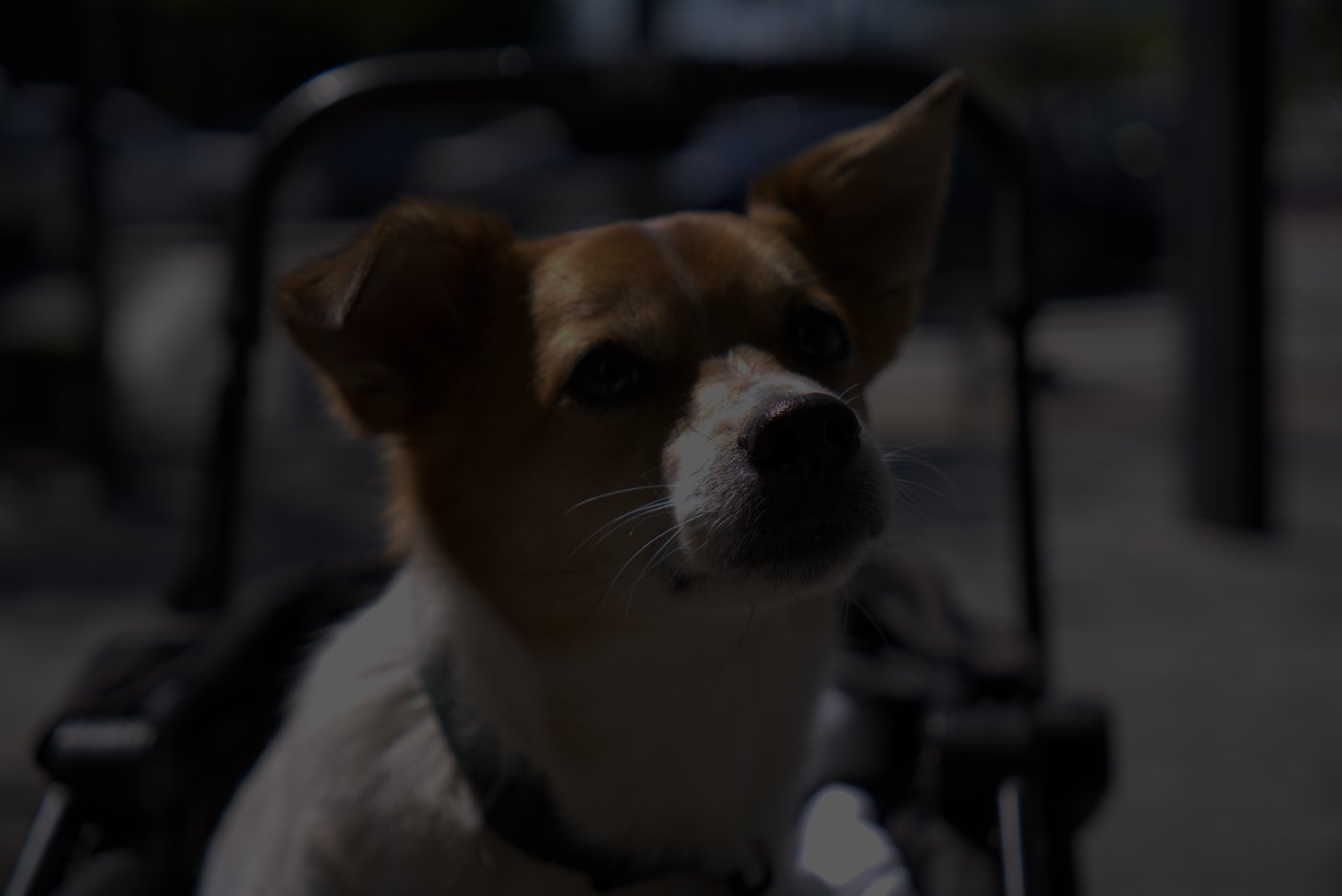
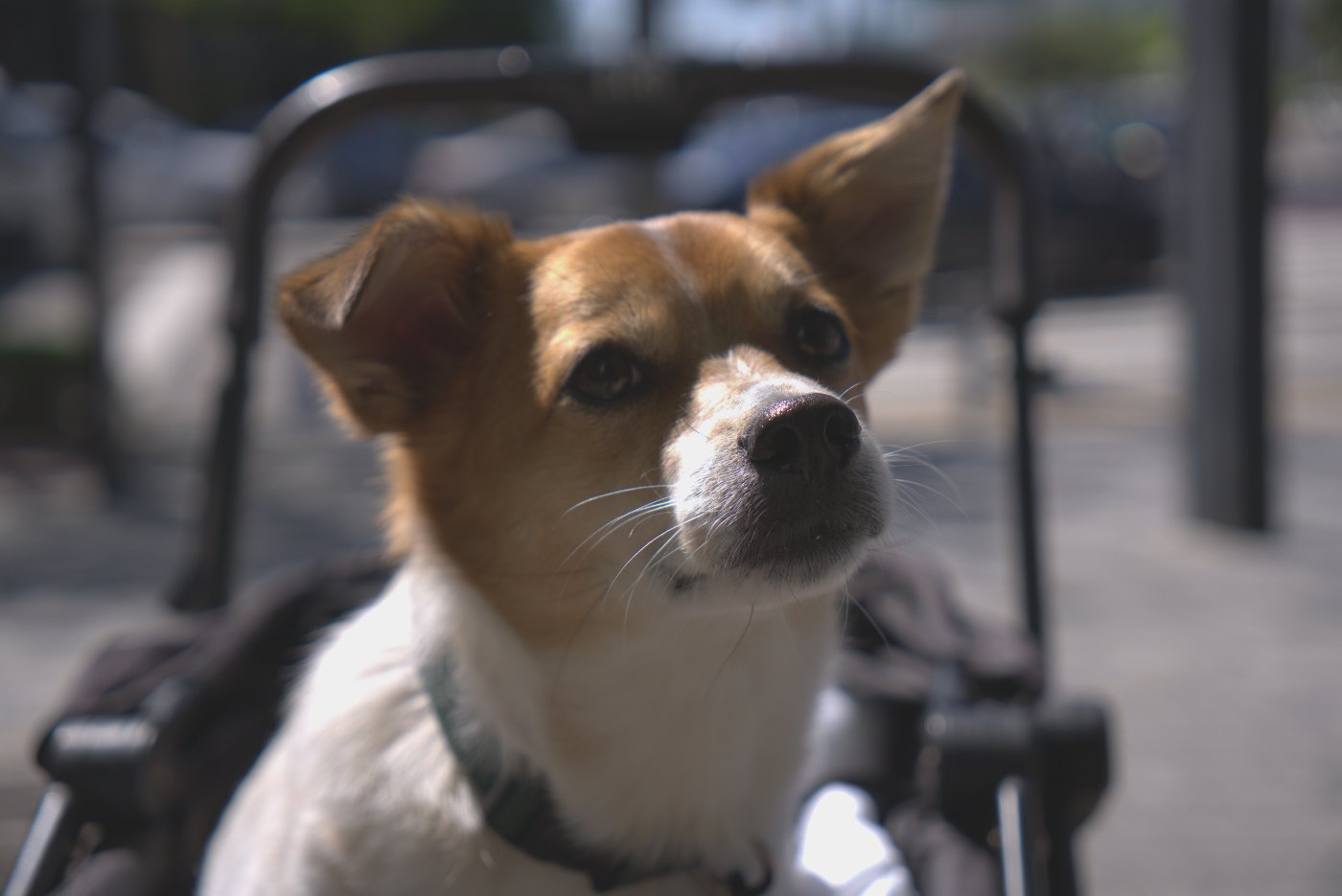
In RAWSnap, start with Exposure to set the subject's brightness, then use Highlights and Shadows to balance the extremes. If you exposed to the right, you'll typically lower Exposure and may pull Blacks down or add a little Contrast so the photo doesn't look washed out. The guide why RAW looks flat has a quick routine for this.
FAQ
Is it better to underexpose or overexpose RAW?
Expose as bright as you can without clipping important highlights. If you're unsure, slight underexposure is the safer mistake, because shadows can be lifted while clipped highlights are lost.
Why does my photo look overexposed on the camera but fine in the editor?
The camera screen shows a processed JPEG preview with a contrasty curve. The RAW often holds more highlight detail than that preview suggests.
Do I need ETTR with a modern camera?
It still helps shadow quality, but modern sensors are forgiving. In fast-paced situations a consistent exposure that protects highlights is perfectly fine.
Should the histogram always touch both edges?
No. A histogram reflects the scene. Foggy, low-contrast scenes won't reach either edge, and that's correct. Only worry about clipping, and about unused headroom on the right.
Open the converter