Why your RAW photos look flat (and how to fix them fast)
The photo looked great on the camera screen, then opened gray and lifeless on your computer. Nothing is wrong with the file. Here is what happened and how to get the punch back in under a minute.
It is one of the most common surprises for anyone who switches to RAW: the image on the back of the camera looks vivid and contrasty, but the same file in a RAW converter looks washed out, slightly dark or oddly colored. Many people assume they did something wrong or that their converter is bad. Usually neither is true. The difference comes from what the camera does to a picture that a RAW converter deliberately does not.
The preview you saw was a JPEG
Even when you shoot RAW only, the image on the camera's LCD is not the RAW data. Every RAW file contains an embedded JPEG preview that the camera built with its own processing engine, using your picture style or profile: Standard, Vivid, a film simulation and so on. The camera screen, its histogram and the thumbnail your computer first shows all come from that preview.
When a RAW converter opens the file, it ignores that preview (or replaces it within seconds) and develops the sensor data itself. You are now looking at a different rendering of the same capture. If the converter's default is more neutral than the camera's picture style, the photo looks "flatter" by comparison, even though it holds more information.
What the camera's JPEG engine adds
Manufacturers spend years tuning their in-camera processing. A typical camera JPEG gets:
- A strong S-curve: darker shadows, brighter highlights, more mid-tone contrast.
- Extra saturation: especially in blues, greens and reds, depending on the profile.
- Sharpening: edges get a crisp boost tuned for viewing at normal sizes.
- Noise reduction: smooths grain, particularly at high ISO.
- Lens corrections: many cameras fix vignetting, distortion and color fringing automatically.
- Dynamic range features: modes like highlight tone priority, Active D-Lighting or DR expansion that change how tones are mapped.
Some of these settings are recorded in the RAW metadata, but most third-party converters do not reproduce them exactly, because the recipes are proprietary. That is why the manufacturer's own free software (Canon Digital Photo Professional, Nikon NX Studio, Sony Imaging Edge, Fujifilm X RAW Studio and similar) is the only way to get a near-exact match to the in-camera look.
RAW data is linear, your eyes are not
There is a deeper reason a RAW starts flat. Camera sensors respond linearly: twice as much light produces twice the value. Human vision is roughly logarithmic, and we expect images to have a tone curve that compresses highlights and lifts mid-tones. A completely unprocessed linear image looks very dark and murky. Every converter applies a gamma and a base tone curve to make it viewable, but different converters choose different defaults. Some aim for a lively look similar to the camera; others, often intentionally, start neutral so they don't clip anything you might want to keep.
Other reasons a RAW can look off
White balance
Most converters use the camera's as-shot white balance, but if the camera used auto white balance under tricky light, or the converter interprets the tag slightly differently, colors can look colder or warmer than you remember. Read white balance in RAW for the fix.
Exposure decisions
If you protected the highlights by underexposing a little (a good habit), the RAW will open darker than a camera JPEG that had brightening applied. That darkness is recoverable, and is often a sign you exposed sensibly. See exposing for RAW.
Missing lens corrections
Without vignetting correction the corners may look darker, and without distortion correction straight lines may bow slightly. Some converters apply these automatically from lens profiles; simpler converters, including RAWSnap, do not.
Very new cameras
Converters need a color profile for each camera model. With a brand-new body, colors may be slightly off or the file may not open at all until the software is updated.
A five-step routine to fix flat RAW files
You don't need a dozen panels. In most photos, five adjustments in the right order recover the punch. The slider names below are the ones in RAWSnap, but the same idea works in Lightroom, Capture One or darktable.
- Check white balance (Temp and Tint). Fix any obvious color cast first, since color affects how contrast looks.
- Set overall brightness with Exposure. Aim for mid-tones (faces, grass, walls) to look natural. Ignore the extremes for now.
- Add Contrast, typically +10 to +25 for a flat file.
- Set the endpoints with Whites and Blacks. Pull Blacks down slightly (around -5 to -20) so the darkest parts are truly dark, and nudge Whites up until the brightest areas are bright without losing detail. This is often the single biggest fix for a "gray veil".
- Add color with Vibrance before Saturation. Vibrance boosts muted colors more than already strong ones, so it is less likely to push skin or bright flowers over the top. +10 to +25 is usually enough; use Saturation sparingly.
Optional extras: a little Clarity (+5 to +15) or Dehaze adds extra punch to landscapes and hazy distant scenes. In full editors these are local-contrast tools; in RAWSnap they are simpler and act mainly as additional contrast, so use them lightly, especially on portraits.
Or start from a preset
A preset is just a saved combination of these sliders. If you want a fast result, apply one and then fine-tune Exposure and white balance for the specific photo. RAWSnap's Vivid preset, for example, adds contrast, vibrance, clarity and a slight black-point drop, which is close to what many camera "Standard" or "Vivid" profiles do. Cinematic goes the other direction with softer highlights and a color grade.
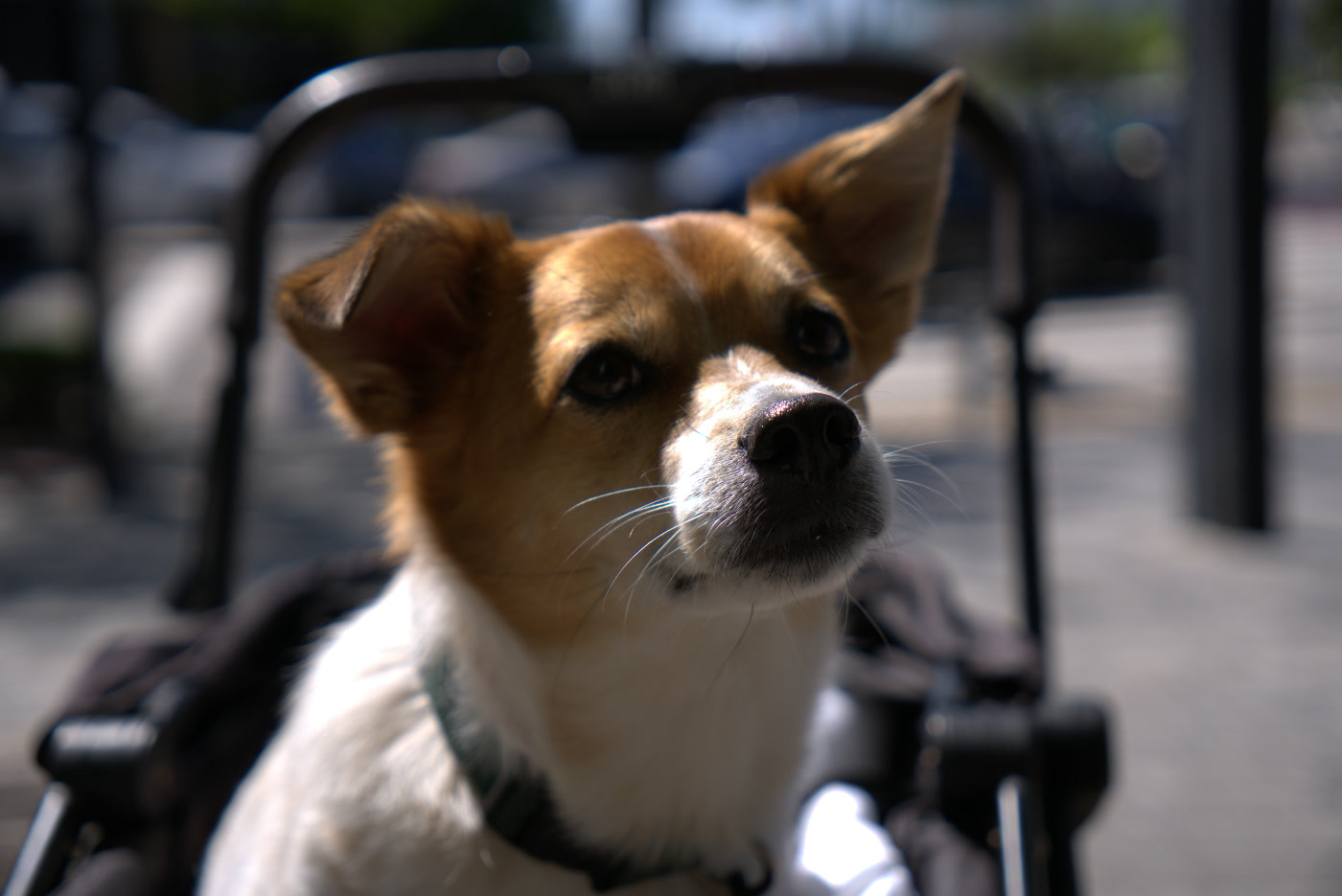
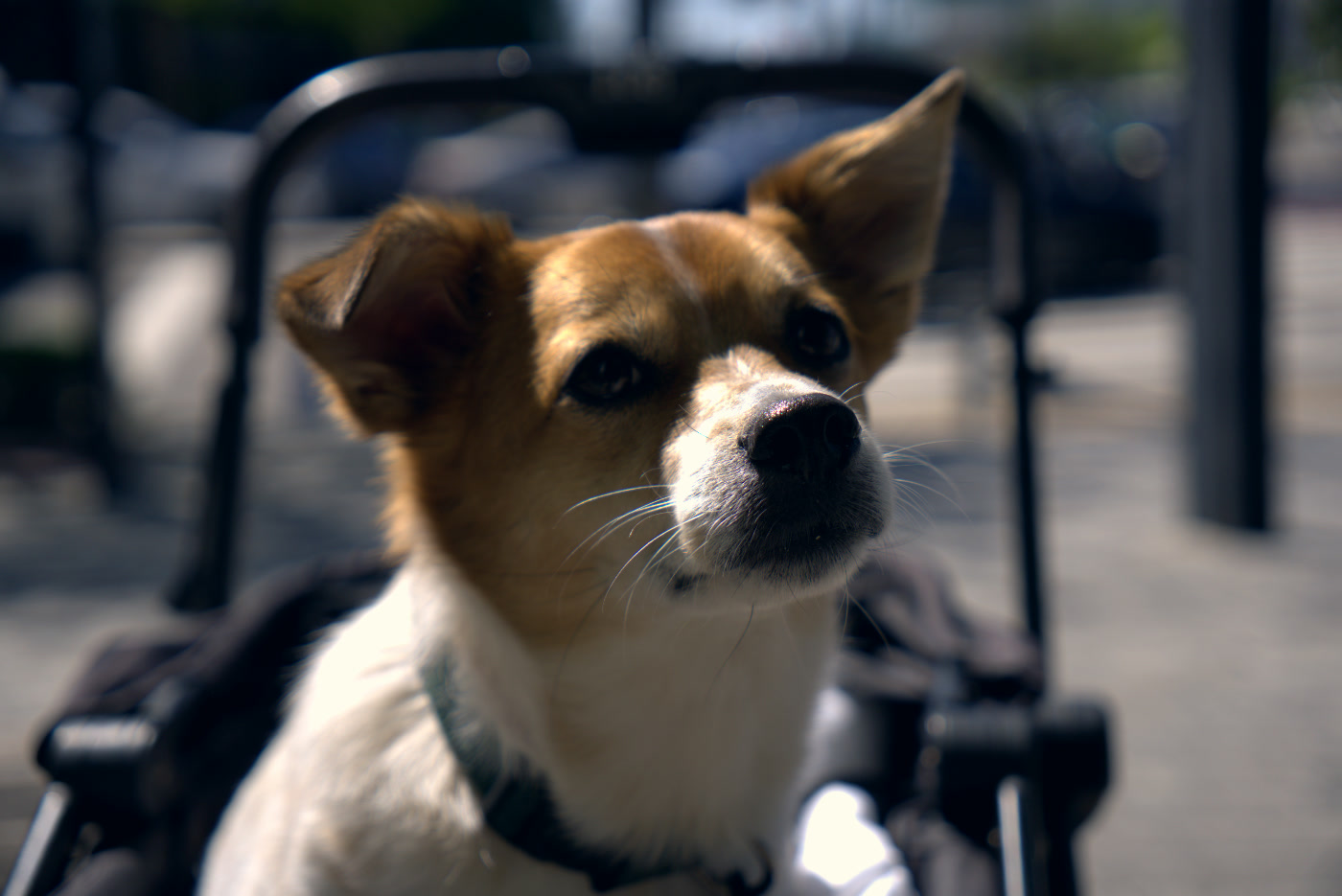
More on choosing and adjusting looks in how to use presets well.
Do you even want it to look like the camera JPEG?
Not necessarily. The camera's rendering is one opinion, tuned to please most people in most situations. Its default contrast can crush shadow detail, and its saturated reds can clip in sunsets and flowers. Starting flat gives you a choice: you can make the image punchy, or keep the gentler tones that suit portraits and moody scenes. Many photographers come to prefer a slightly softer base and add contrast only where the photo needs it.
If you really do want the exact in-camera look, there are two good options: shoot RAW + JPEG and use the JPEG when it's right, or develop in the manufacturer's own software, which reads your picture style settings. For everything else, the five-step routine above gets you most of the way in seconds.
Settings in camera that change how your RAW opens
A few camera settings don't alter the sensor data at all but still change your first impression of a RAW file:
- Picture style or profile affects only the embedded preview and the camera histogram. Setting it to a neutral or flat profile makes the camera screen look more like your converter, which is useful if the jump from preview to RAW bothers you.
- Highlight-priority and dynamic range modes often work by exposing slightly darker and brightening the JPEG afterwards. The RAW stays darker, so expect to raise Exposure.
- Auto white balance is recorded as the as-shot value. It's usually a fine starting point, but under artificial light it can drift; a preset like Daylight gives more consistent results across a series.
None of these are mistakes. They simply explain why the same scene can open brighter, darker or warmer from one shoot to the next.
Quick checklist
| Symptom | Likely cause | First fix |
|---|---|---|
| Gray, hazy overall | Neutral tone curve, lifted blacks | Blacks down, Contrast up |
| Darker than the camera preview | Highlight-protecting exposure or no in-camera brightening | Exposure up, then Highlights down if needed |
| Colors dull | No picture-style saturation | Vibrance +10 to +25 |
| Too blue or too orange | White balance | Temp (and Tint for green/magenta) |
| Soft-looking detail | No in-camera sharpening | A touch of Contrast or Clarity helps a little; real sharpening needs a dedicated editor |
| Dark corners | No vignetting correction | Use an editor with lens profiles, or accept as style |
FAQ
Why does my RAW look different in every program?
Each converter uses its own demosaicing, color profiles and default tone curve. None of them is the "true" image; they are different starting points for the same data.
Is a flat RAW a sign of bad exposure?
Usually not. Flatness mostly comes from the neutral default rendering. Check the histogram: if it isn't clipped at either end, the file is fine and simply needs contrast.
Can I make RAW files open with my camera's picture style?
Only the manufacturer's software reproduces picture styles exactly. Some editors offer "camera matching" profiles that get close.
Should I just shoot JPEG if I like the camera's look?
If you rarely edit and like the results, JPEG or RAW + JPEG is a perfectly reasonable choice. Shoot RAW when you want the flexibility. Our RAW vs JPEG guide helps you decide.
Open the converter